
The AI Document Review Feature on DocLegal.ai simplifies your contract review process.
Here's how it works:
Step 1: Select the Document Review Feature
Click on Document Review to start working on your document.
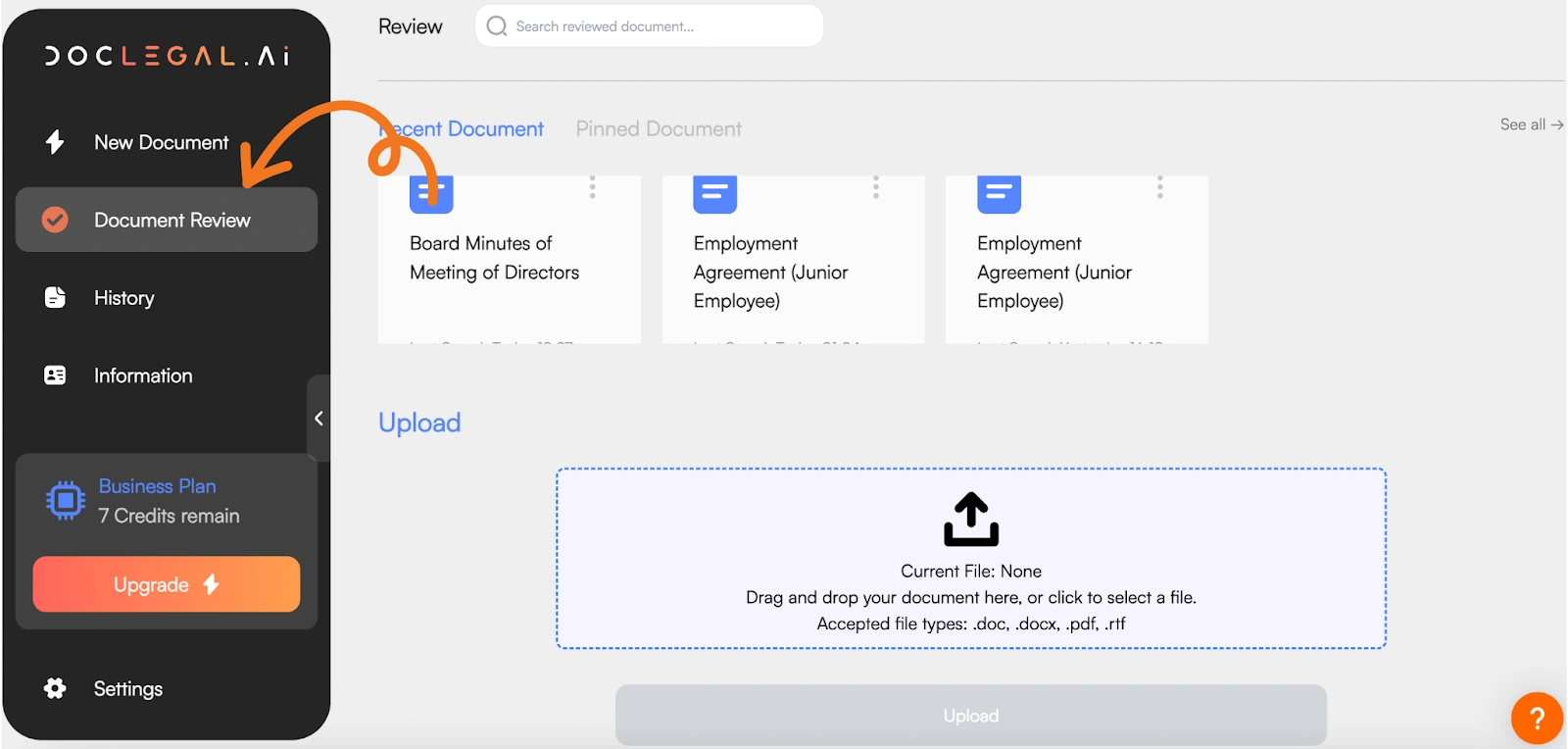
Step 2: Upload your Document or select from ‘Recent Document’ List
Upload the contract or agreement you want to review.
You can drag and drop your document or click to browse your computer and select your document. DocLegal.AI currently accepts the following document types:
- doc
- docx
- rtf
All documents generated with DocLegal.AI will appear under “Recent Document”. After choosing a document, you will be automatically directed to the document review chatbot.

Step 3: Choose Your Document Review Mode: Draft or Review
The Document Review Feature offers two modes: Draft Mode and Review Mode
Draft Mode:
Perfect for editing contract content. This mode includes:
- Add Clause: Insert a new clause tailored to your requirements.
- Revise Clause: Modify existing clauses for clarity or precision.
- Replace Parties: Quickly update the names of the parties in the document.
Review Mode:
Ideal for analyzing your document. This mode includes:
- Highlight Risks: Identify potential risks and red flags in the contract.
- Summarize: Generate a concise summary and outline the essential clauses in the document
- Suggest Clauses: Name the clause you need and Doclegal.Ai chatbot will draft it for you.

Step 4: How Draft Mode Works
Set your chatbot at “Draft” mode
The chatbot is by default set to “Review” mode. To use the “Draft' feature, you must change the mode of the chatbot to “Draft”.

a. Add Clause
Use the 'Add Clause' feature to add new clauses to your contract.
Describe clause you need in the contract and the chatbot will generate a clause accordingly- its output will appear on the left-hand side, embedded in your document and highlighted in yellow.
Alternatively, you may simply state “add clause” without typing further specification into the text box. Here, the chatbot will generate a clause so as to make the document more comprehensive.

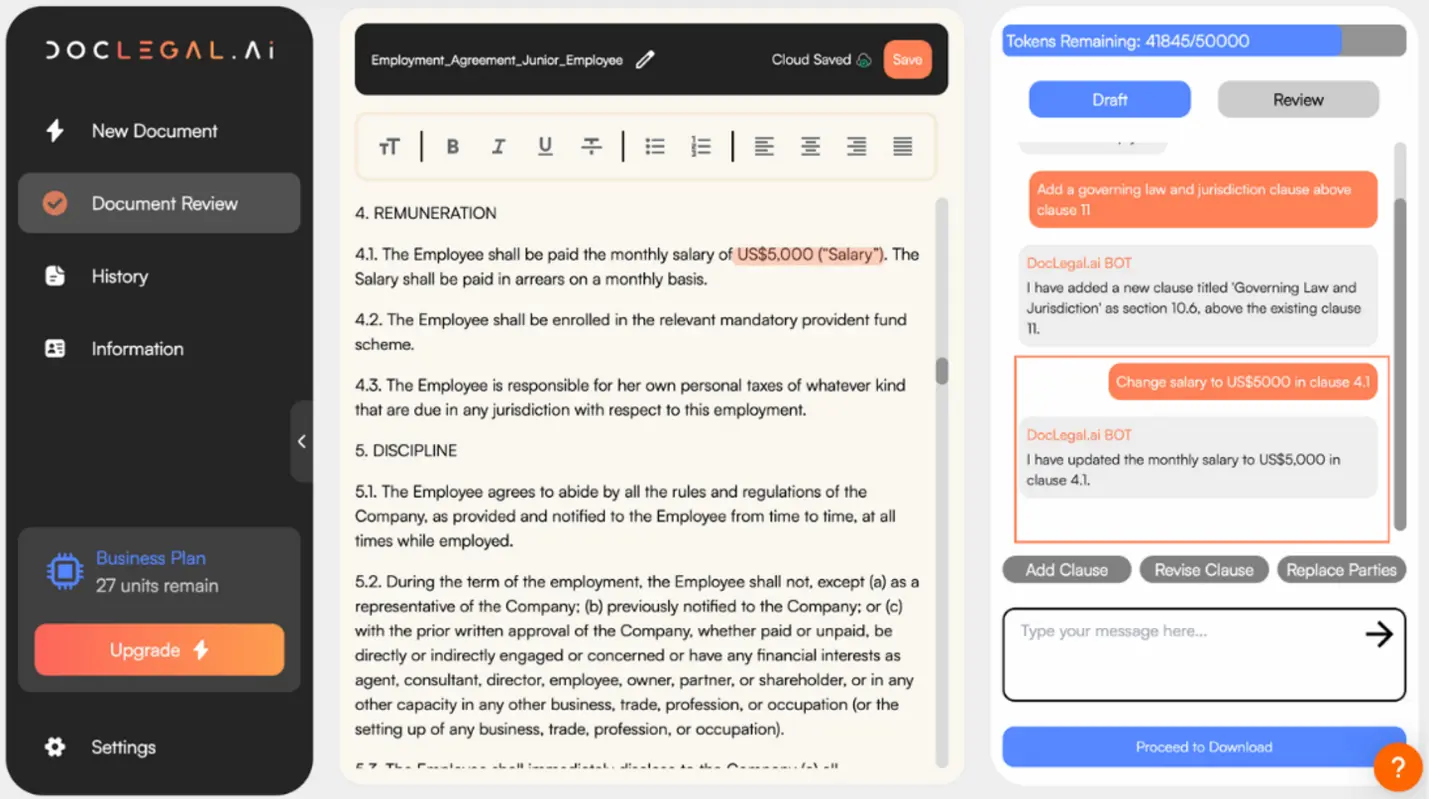
b. Revise Clause
AI amends the clauses based on your requirements. Specify the target clause that needs to be updated and describe the necessary changes. For example, change salary to US$5000 in Clause 4.1
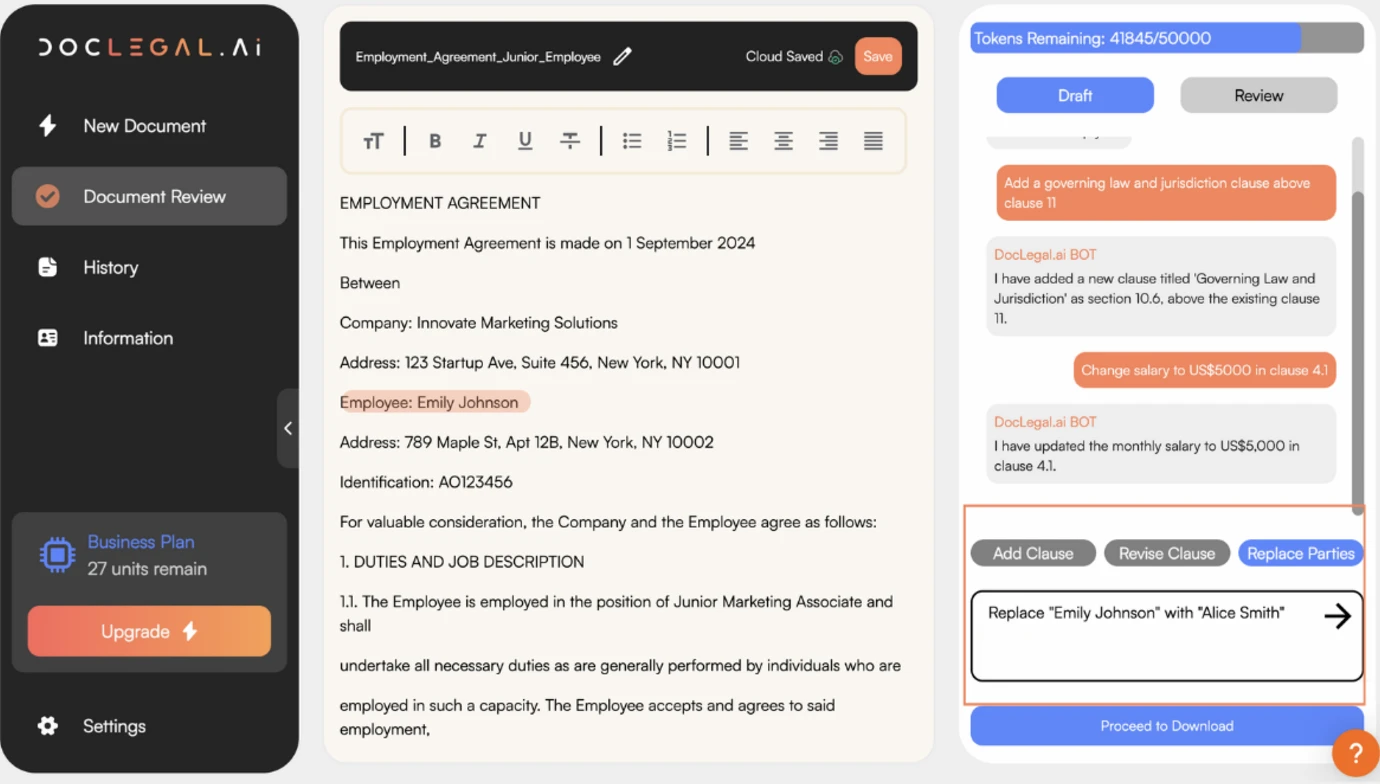
c. Replace Parties
This feature enables you to quickly update party names throughout the document. Please indicate if the party name should be replaced in one section of the document only or throughout the document. For e.g. Replace “Emily Johnson” with “Alice Smith” in the agreement.
Step 5: How Review Mode Works
Click on the “Document Review” button and upload your document
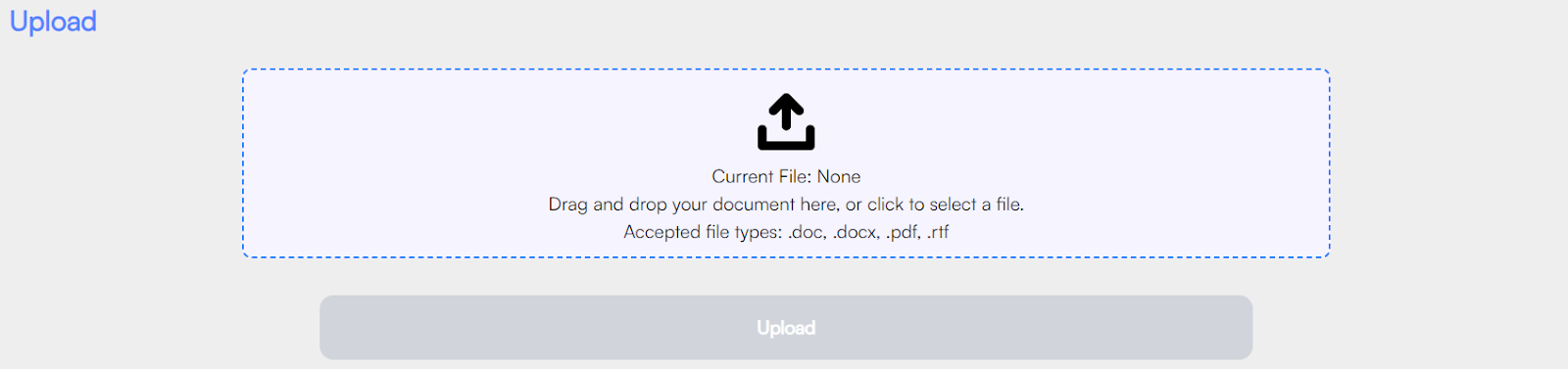
You can drag and drop your document or click to browse your computer and select your document. DocLegal.AI currently accepts the following document types:
- .doc
- .docx
- .rtf
Set to “Review” mode

a. Highlight Risks
Use the 'Highlight Risks' feature to identify and assess potential legal risks in a document. E.g. If you want to know about the potential risks for the employer, type “Highlight risks for the employer”.
What it does:
- Scans the document for clauses that may expose the selected party to legal or financial risk.
- Flags risky terms, imbalances, or missing protections.
- Provides a summary of concerns for consideration
Tip: Use this tool during contract reviews to ensure your party’s interests are protected and to negotiate more effectively.

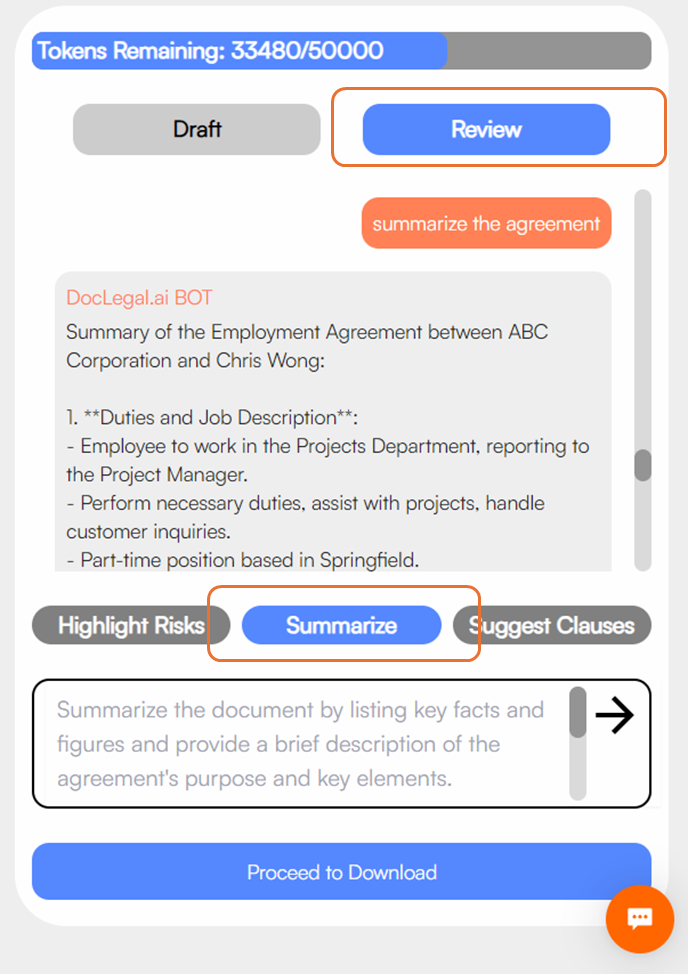
(b) Summarize
The 'Summarize' feature will generate a concise summary and outline the key points of the clauses in the document. Sometimes we may just want the summary of certain clause(s), we can type the required clause(s) after clicking the “Summarize” button.
For e.g. Summarize the Employment Agreement by listing key facts and provide a brief description of the agreement’s purpose and key elements in 300 words.
c. Suggest Clauses:
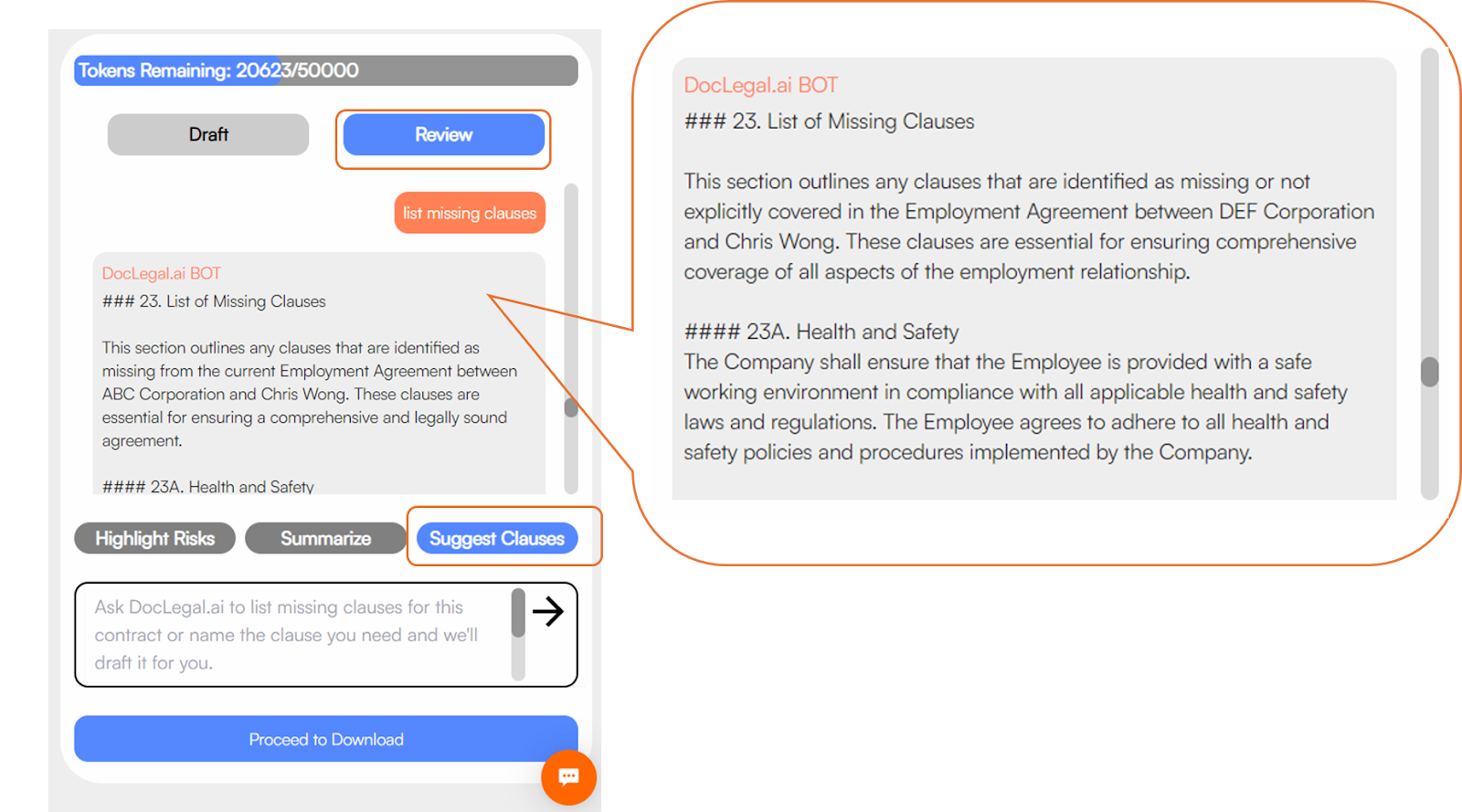
There are two ways you can use this feature
First, you may ask the AI to list missing clauses for your contract.
E.g. Type “list missing clauses”.
Second, another way to use this function is that you may ask the AI to name a specific clause you need and it will draft it for you.
E.g. Type “Draft an entire agreement clause for this employment contract”

The output generated in the review mode will be embedded in your document. The support team at DocLegal.ai is always here to offer guidance and address any concerns whenever you face queries.
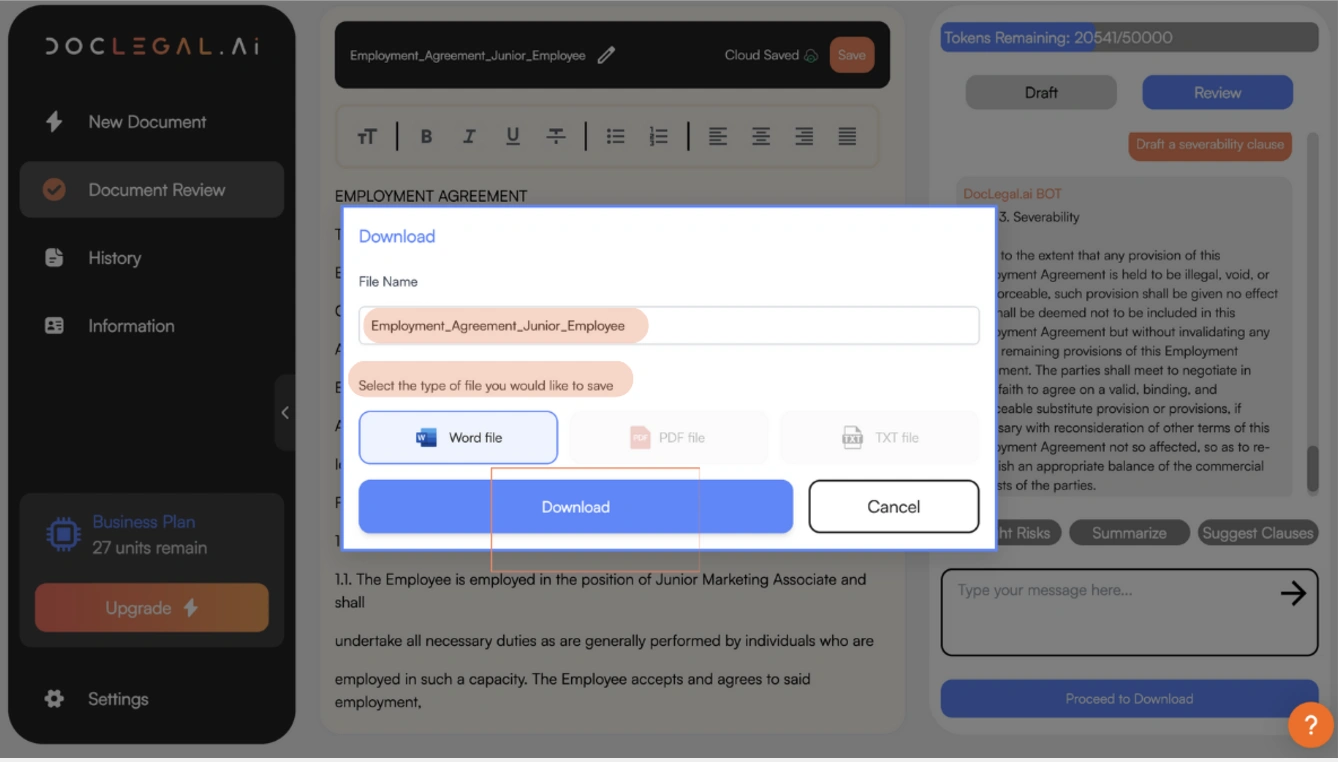
Step 6: Download your Document
After reviewing all AI-suggested changes and fine-tuning the document according to your needs, you can click ‘Proceed’ to finalise the document. Select your preferred file format and click ‘Download’ to save your revised legal document.
DocLegal.AI transforms document revision from a time-consuming task into a streamlined, intelligent process. By combining advanced AI capabilities with user-friendly interfaces, the platform empowers legal professionals to work more efficiently and accurately.
What to do if running out of tokens?
While drafting legal documents with DocLegal.ai and interacting with the chatbot, it will show the token usage in real-time for each document. For each time you use the functions in the draft/review mode and type your message in the chat box, the number of tokens will be deducted.
So what to do if the tokens have been used up?
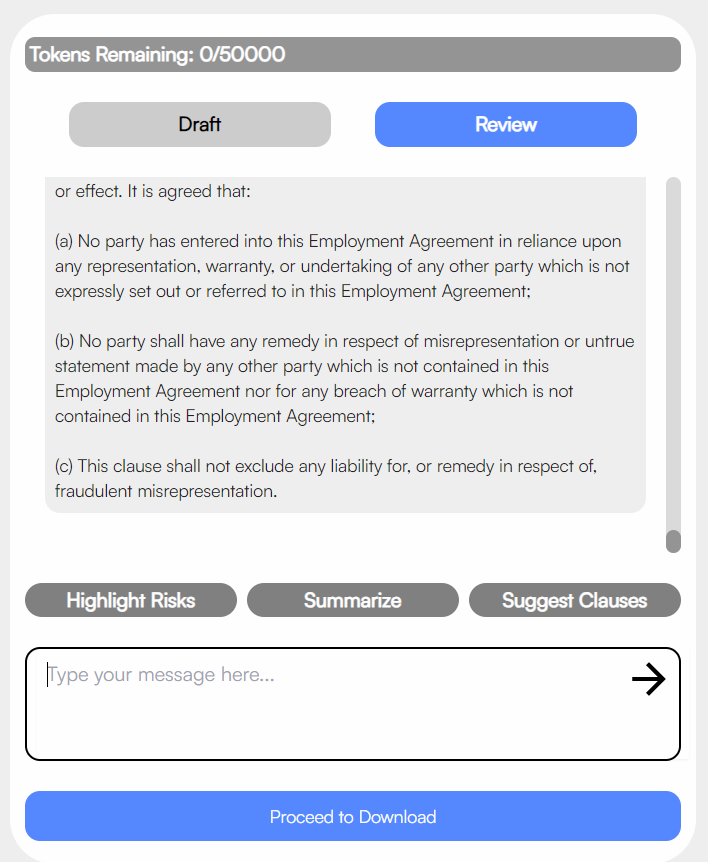
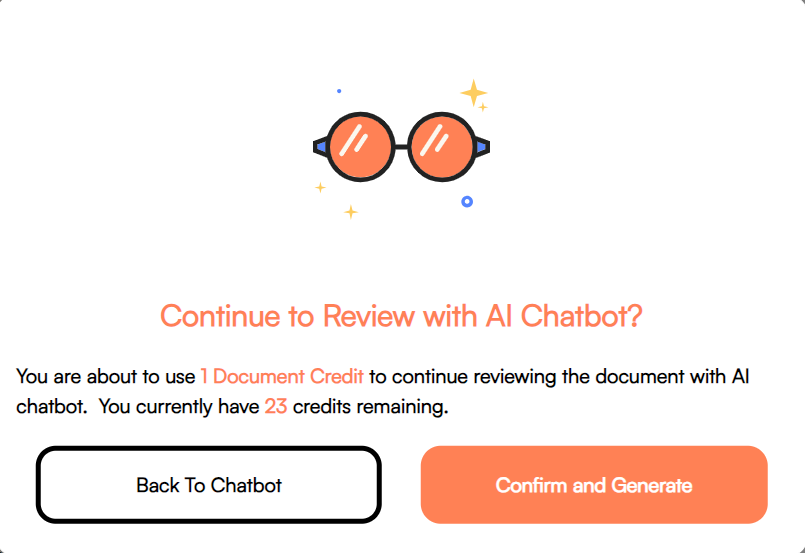
If you still have document credits remaining, you will see this message. Click “Confirm and Generate”.
If you have already subscribed to a plan and do not have enough credits:
- Go to “Settings” and choose “Subscription”. You will see a bar stating the number of units used.

- When you are running out of units in your plan, click the “Manage Subscription” button. There are 3 options including topping up credits, upgrading the plan and cancelling the subscription.




.jpg)
.jpg)